Connect each person’s Google Calendar or Outlook, so their own appointments block booking times and new bookings appear in their calendar.
Connect a calendar
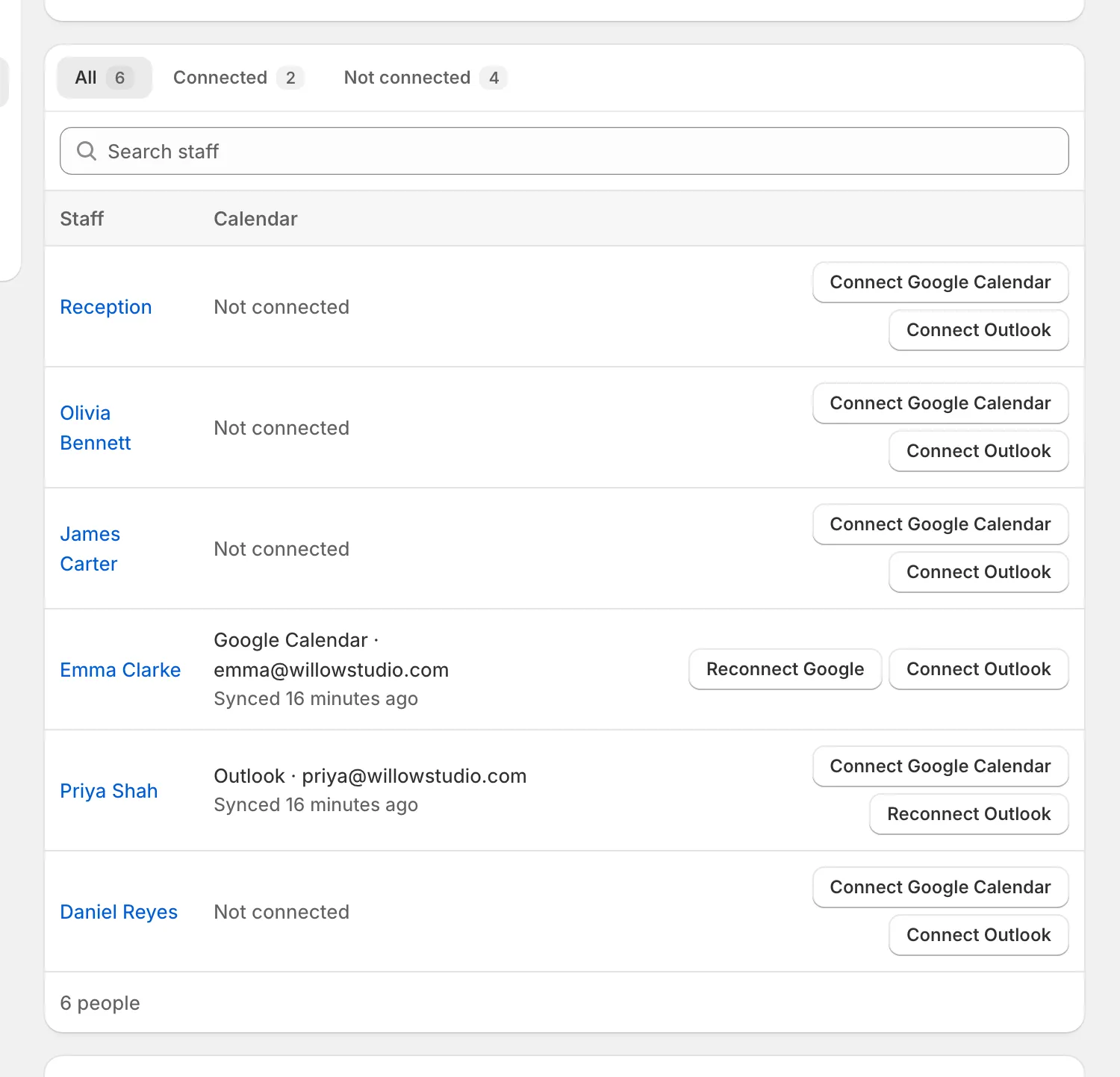
- Open Settings › Calendar sync. It lists everyone on your team.
- Press Connect Google Calendar or Connect Outlook next to the person.
- A new tab opens. Sign in to that person’s calendar and allow access.
- Come back to Bookmerce. The page updates by itself.
What happens next
The person’s page shows their connected calendar and when it last synced.
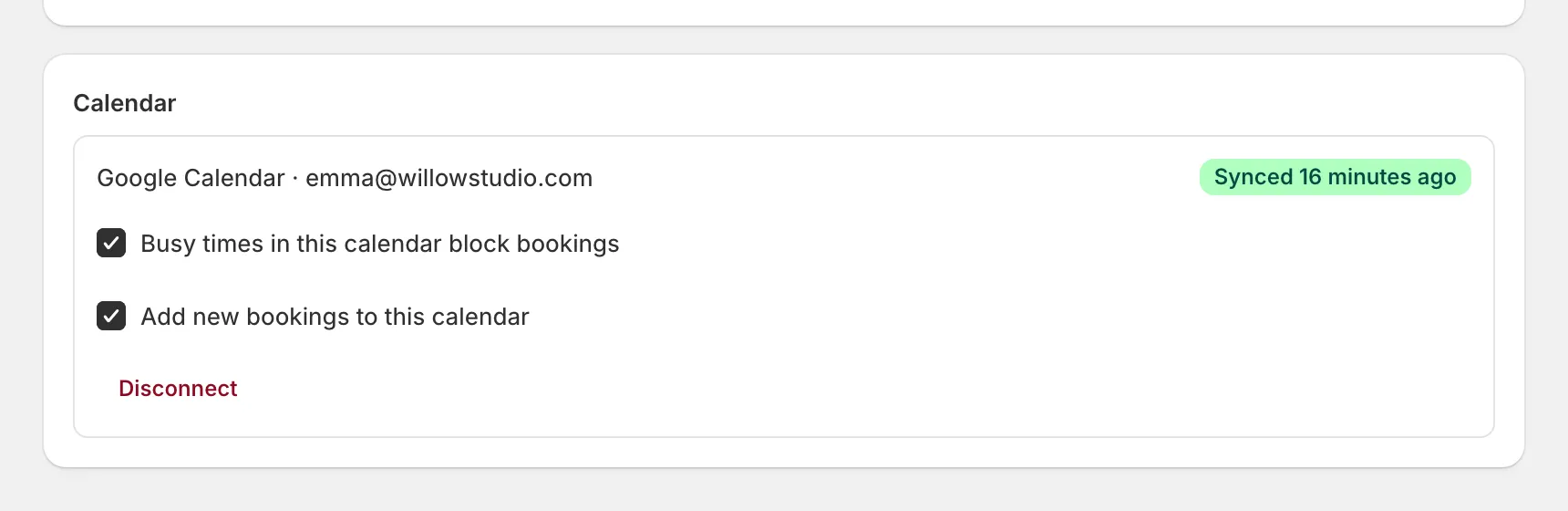
- Busy times block bookings. Events in the person’s calendar over the next 60 days block those times for them. They’re refreshed about every 10 minutes.
- Bookings appear in their calendar. New bookings are added marked as free, so they don’t count twice. Moved or cancelled bookings are updated there too.
Time zones
Make sure each calendar uses the same time zone as the location the person works at. Settings › Calendar sync reminds you of your store’s time zone.
Disconnecting
Press Disconnect on the person’s page at any time. Their calendar’s busy times then stop blocking bookings.