
You can take bookings right on a product page, so customers book the thing they were already looking at: a bike fitting on the bike, a lesson on the instrument, a treatment on its own page.
Link a service to a product
- Open the service in Bookmerce.
- Under On your store › Product page, press Choose and pick the product.
- Choose how the form sits on that page, then Save. The booking form appears by that product’s buy buttons by itself.
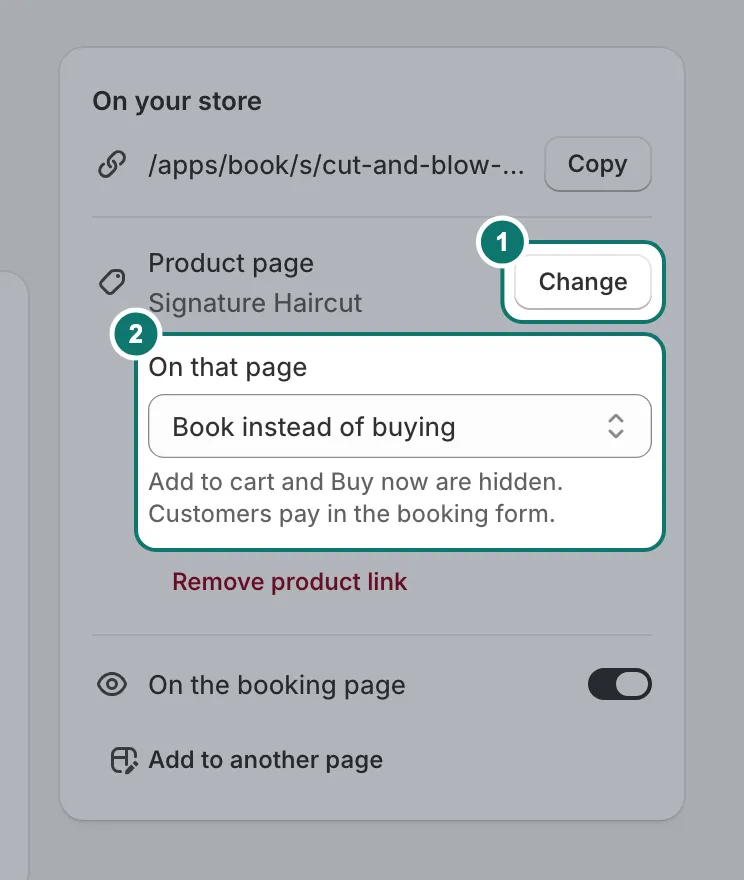
Instead of buying, or as well as buying
- Book instead of buying. The form takes the place of the theme’s Add to cart button, and the theme’s price and size picker are hidden. Customers pay in the booking form. Use this when the product is the appointment.
- Book as well as buying. The form sits beside the buy buttons. Use this when customers might buy the product and also book a fitting or a session.
Where the form sits
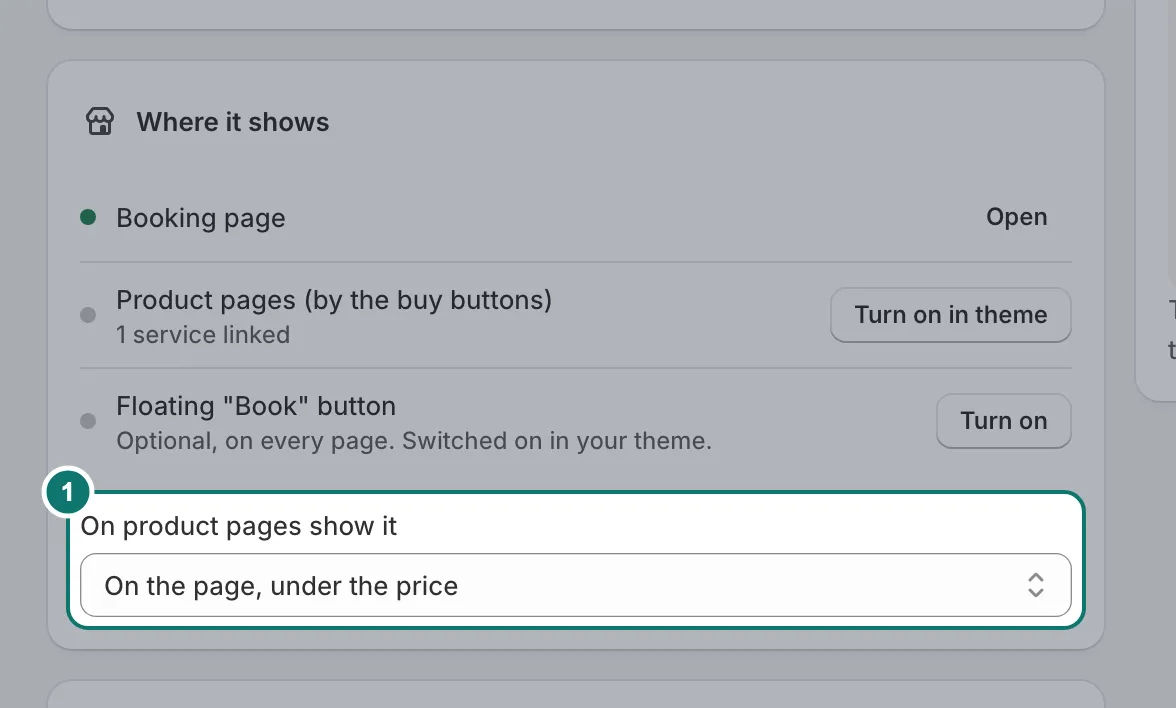
On the Appearance page, choose where the form shows on product pages.
Not sure how it will look? On the Appearance page, See it on my store opens the form on a preview page laid out like your product pages. Customers don’t see that page. The form takes your theme’s colours, corners and font, so it looks like part of the product page.