Open a service in Services & events to change any of these. Changes apply to new bookings; bookings already made stay as they are.
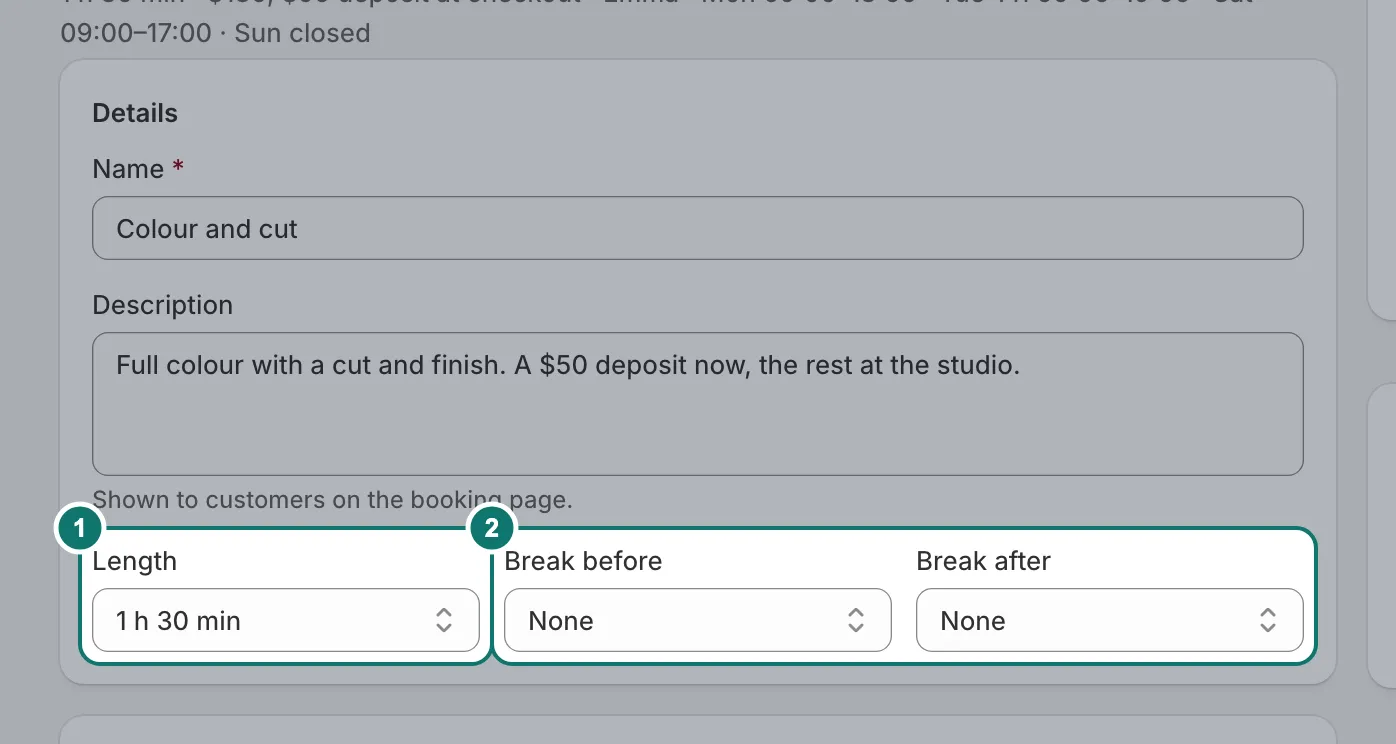
Length and breaks
Set how long the service takes. Break before and Break after keep time free around each booking, to get ready or tidy up. Customers don’t see the breaks.
Who does it
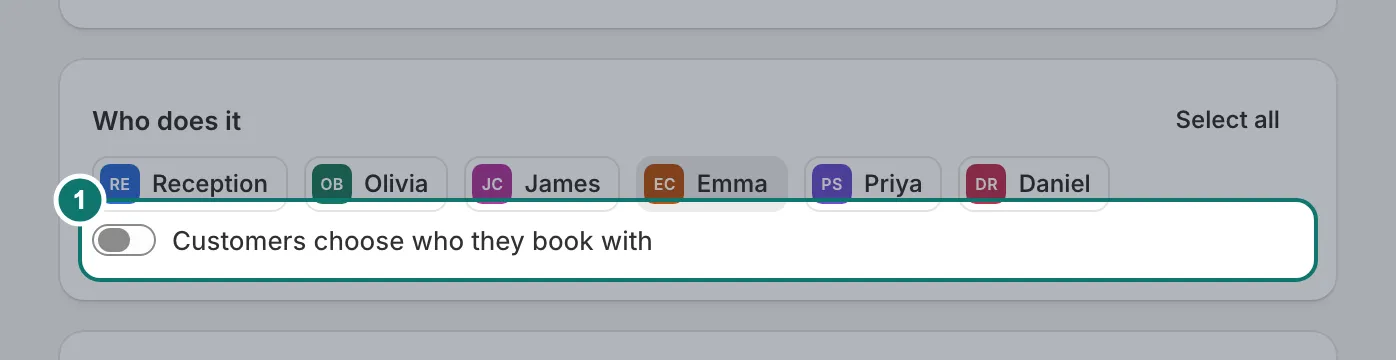
Choose the people who do the service. With nobody chosen, anyone on your team can take it. Turn on Customers choose who they book with to let customers pick a person on the booking form; otherwise they get whoever is free.
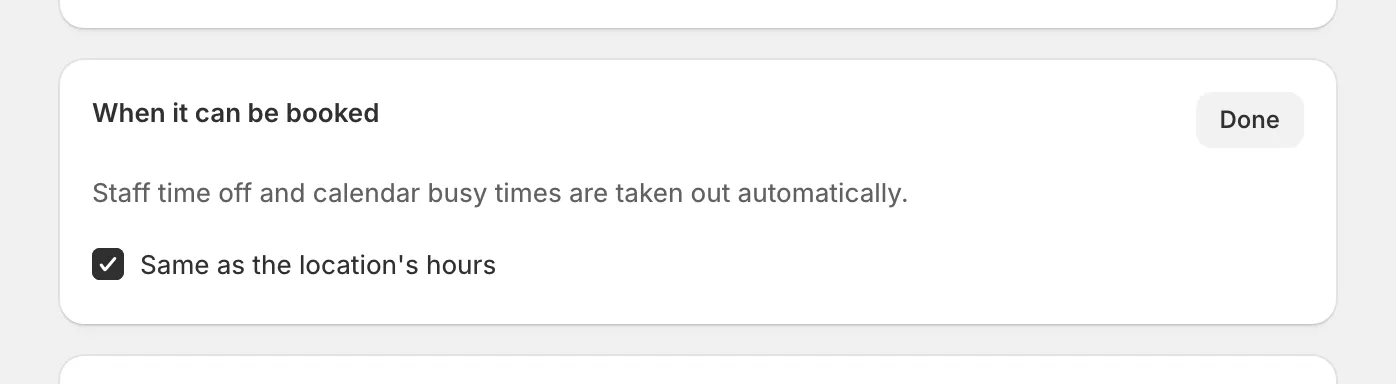
When it can be booked
By default a service can be booked whenever its location is open. Press Change to give it its own hours. Staff time off and calendar busy times are taken out automatically.
Booking rules
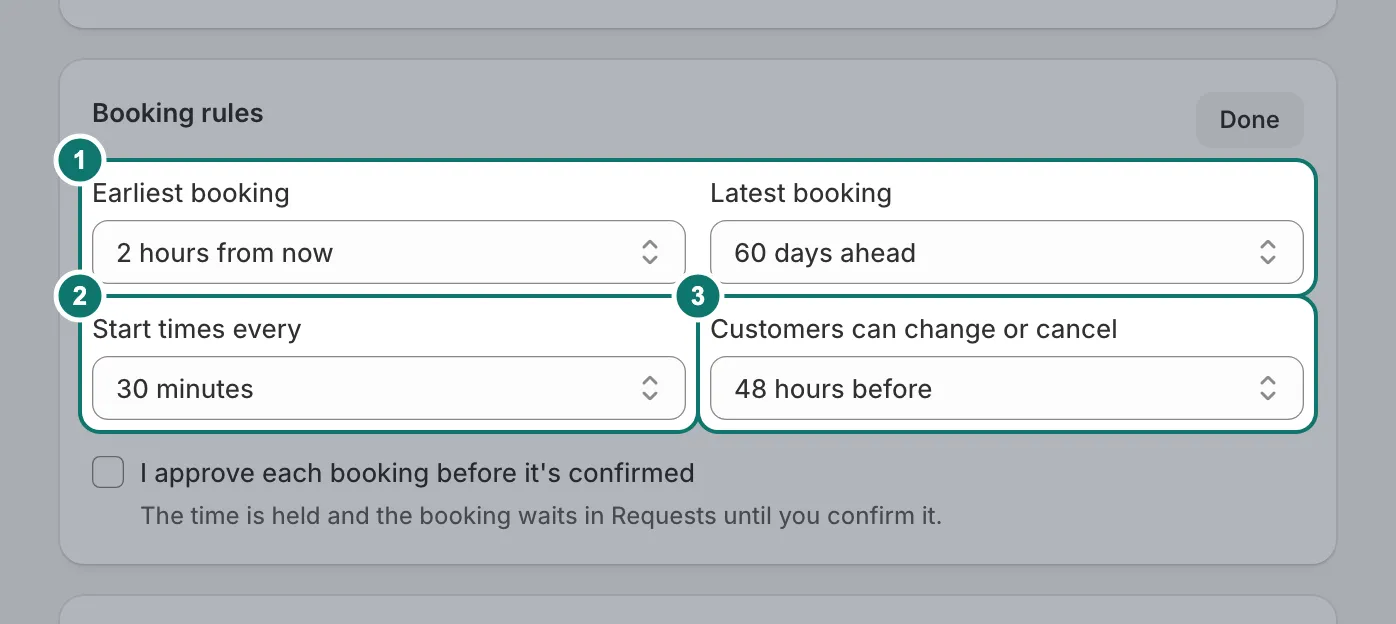
Press Change next to Booking rules:
- Earliest booking and Latest booking: how soon and how far ahead customers can book.
- Start times every: how often start times are offered, for example every 30 minutes.
- Customers can change or cancel: how late they can do it online. See What customers can change or cancel.
- I approve each booking before it’s confirmed: see Approving requests.