Staff
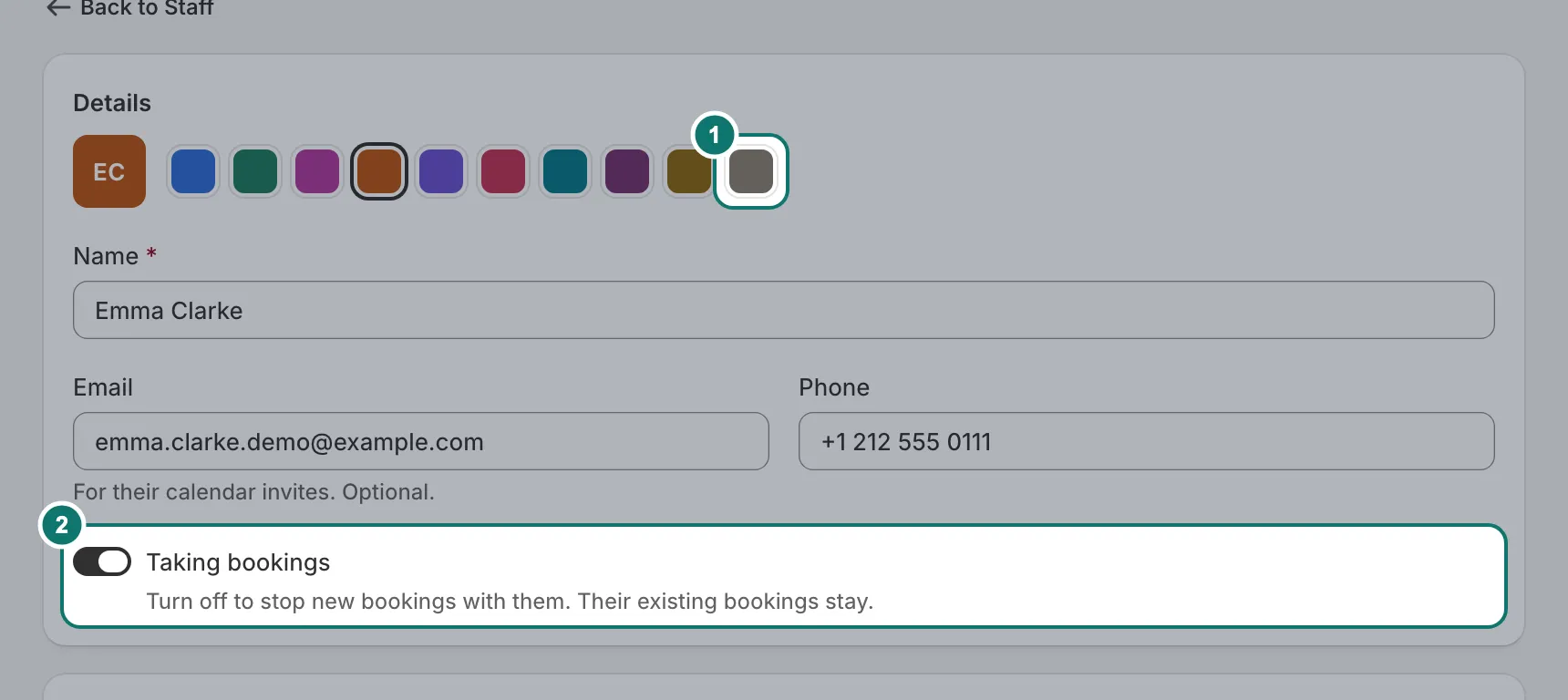
Add each person customers can book with in Staff. Each person has a colour, so the calendar shows at a glance who is busy. Turn off Taking bookings to stop new bookings with someone; their existing bookings stay.
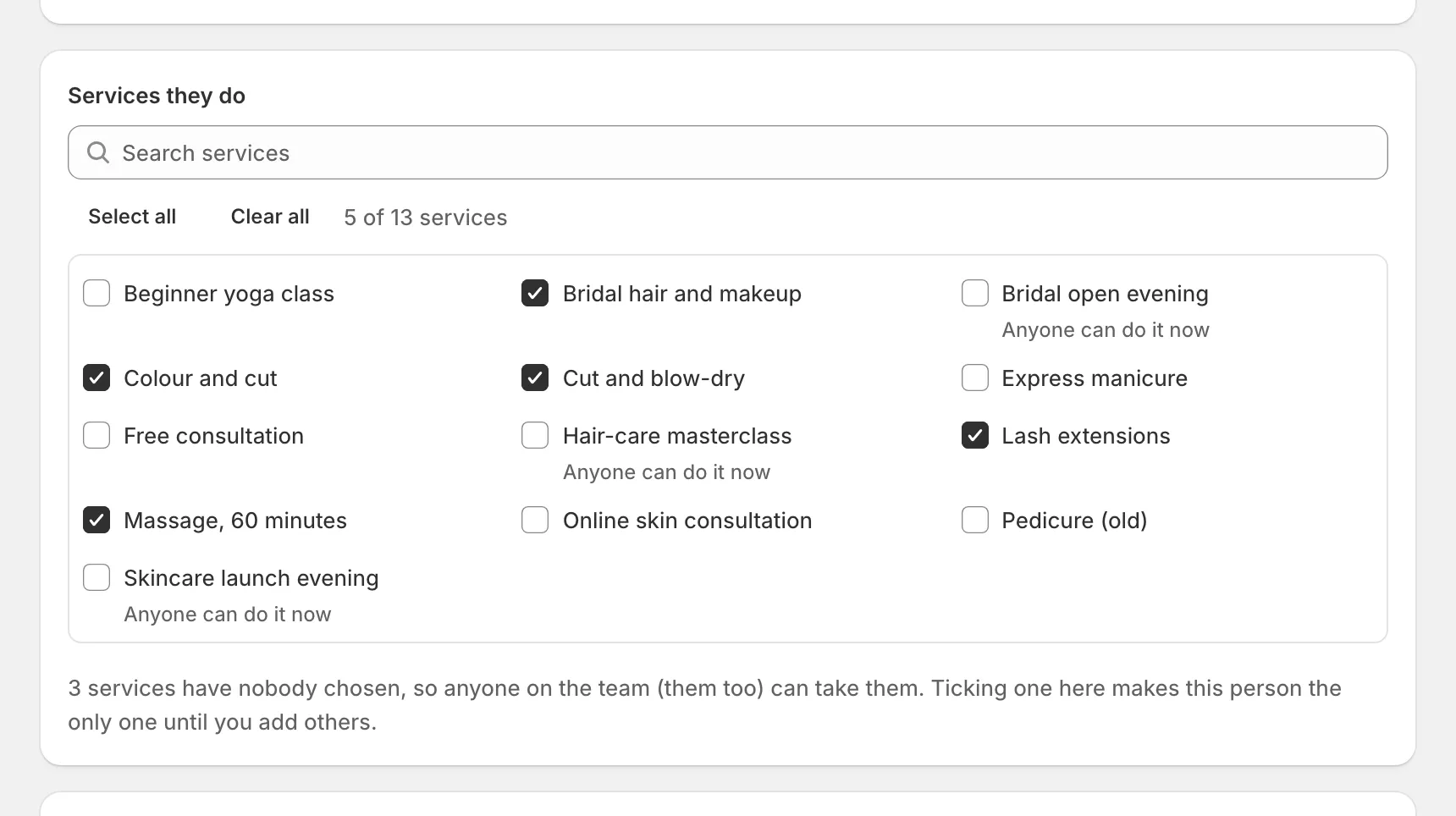
Tick the services they do. A service with nobody ticked can be done by anyone.
Hours and time off
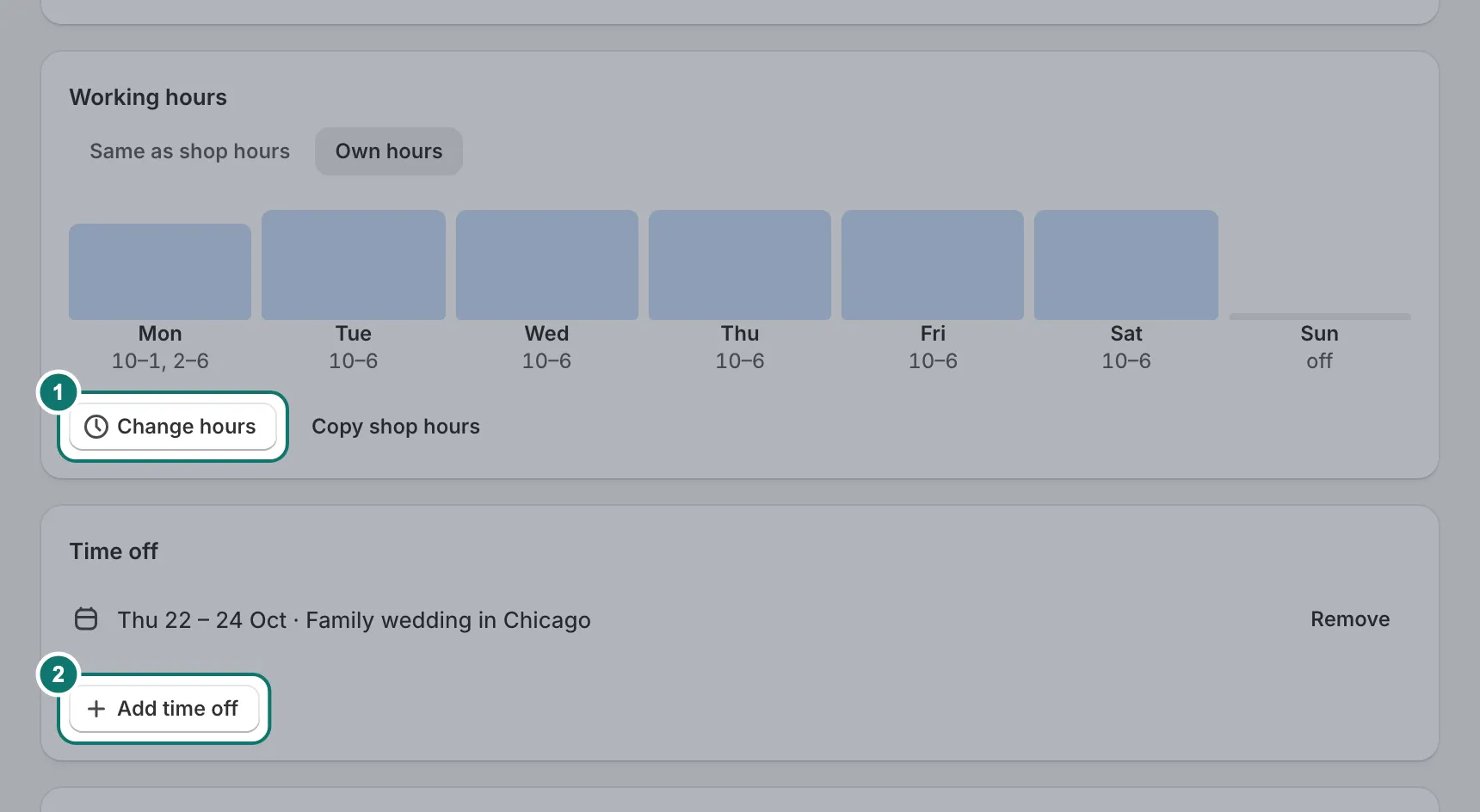
Staff work your location’s hours unless you give them their own. Time off (holidays, sick days) closes those days for that person only. If time off leaves a service with no free times, Home warns you.
Locations
A location is where a service happens: a place customers come to, online, or at the customer’s address. Each one has its own opening hours and time zone, and customers always see times in the location’s time zone.
- Open Settings › Hours & locations and pick a location.
- Set the hours for each day. Untick a day to close it.
- Add days off and holidays under the hours.
- Press Save.
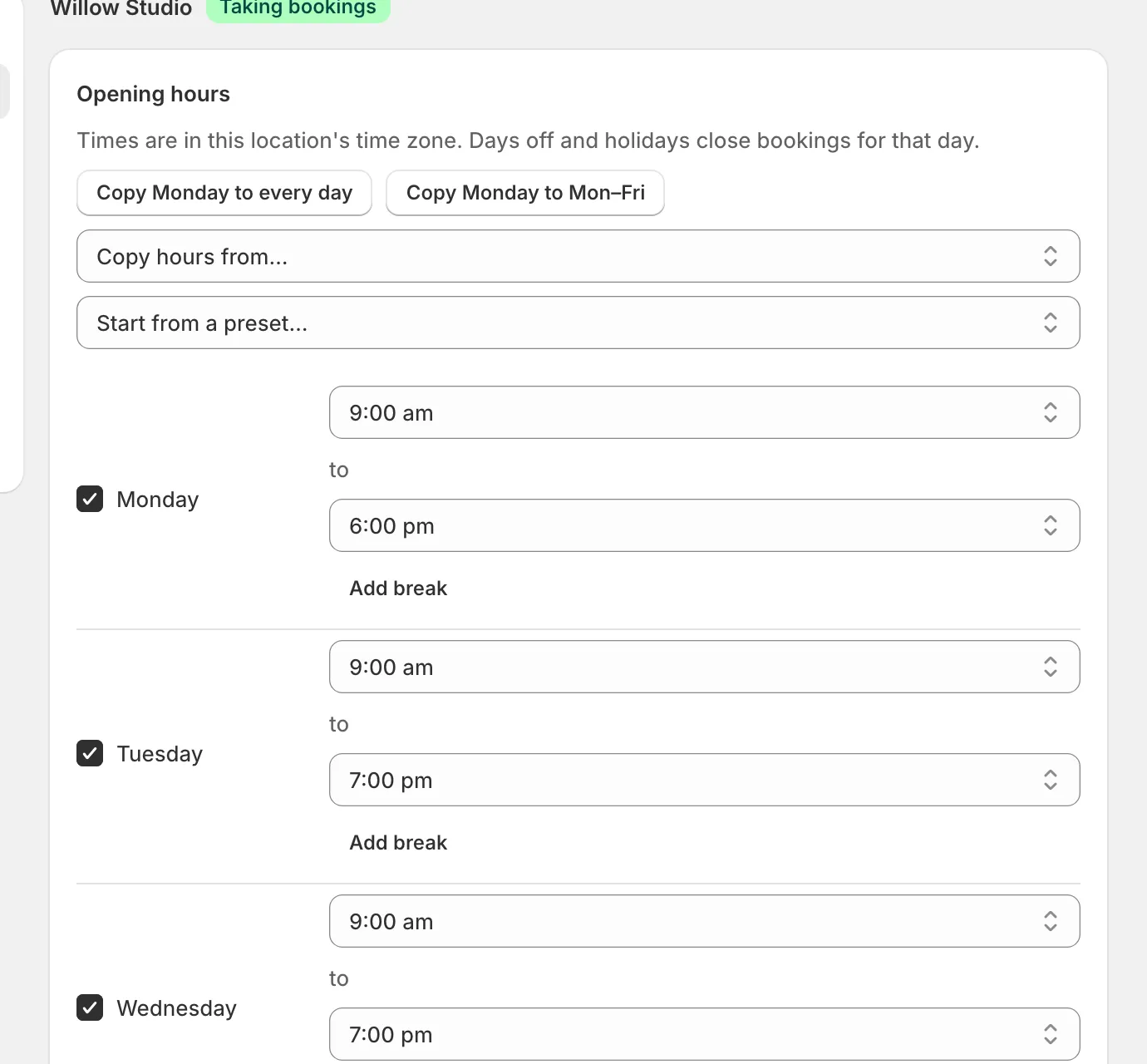
Add a location for each branch, and choose one location on each service. Untick Open for bookings to pause new bookings at a location; bookings already made stay.